Free USB Flash Drive Space after ISO image saved
Some time ago I wrote about writting ISO image to USB flash drive. But when you burn an ISO image to USB stick it re-formats partition table. And suddenly you realize that you don’t have enough free space on USB drive. Even formatting doesn’t help. Also some other tools that write to USB can change partition table and then disk losses it space. After that Windows and Linux can see only master DOS partition winch usually has not to much space.
I started searching for the solution of the problem. And there were suggestion to try to right click on My Computer or just Computer in File Explorer and select Manage. And then from Windows that opens to select Storage -> Disk Management.
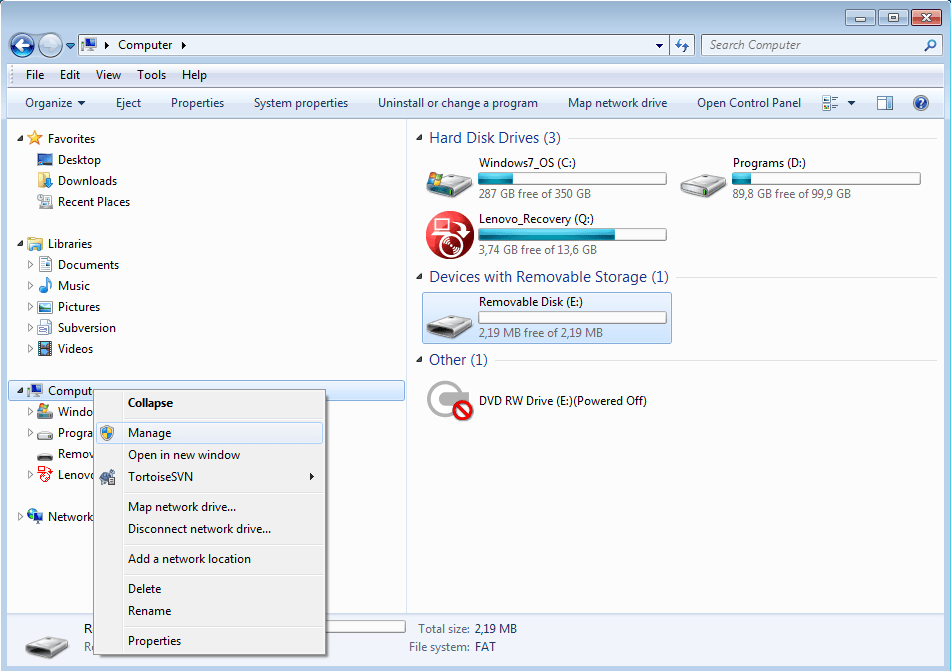
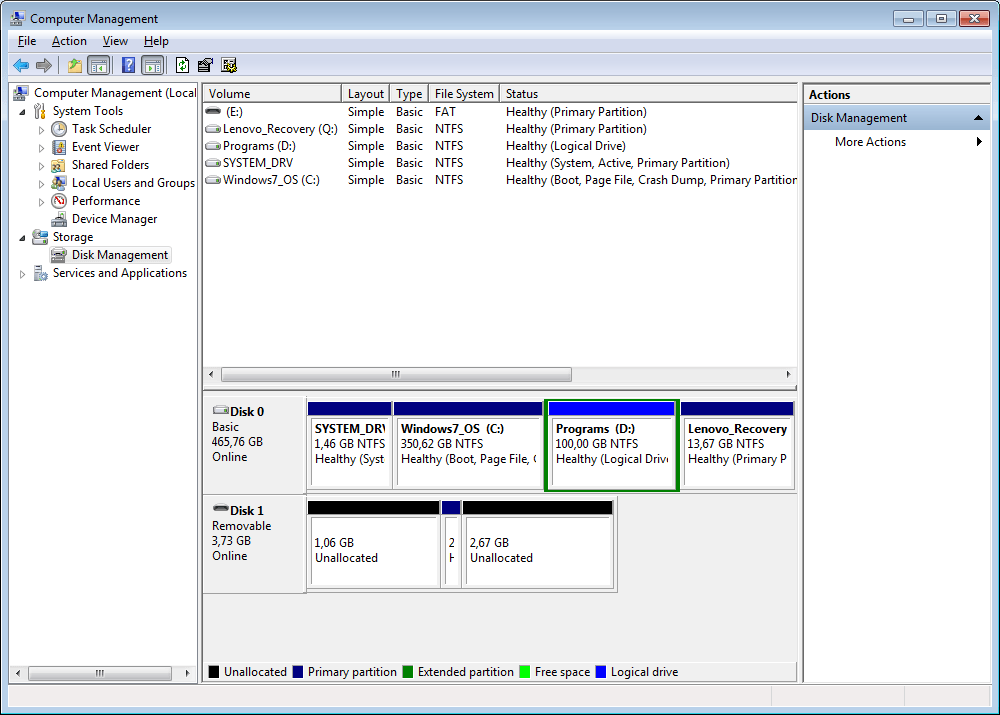
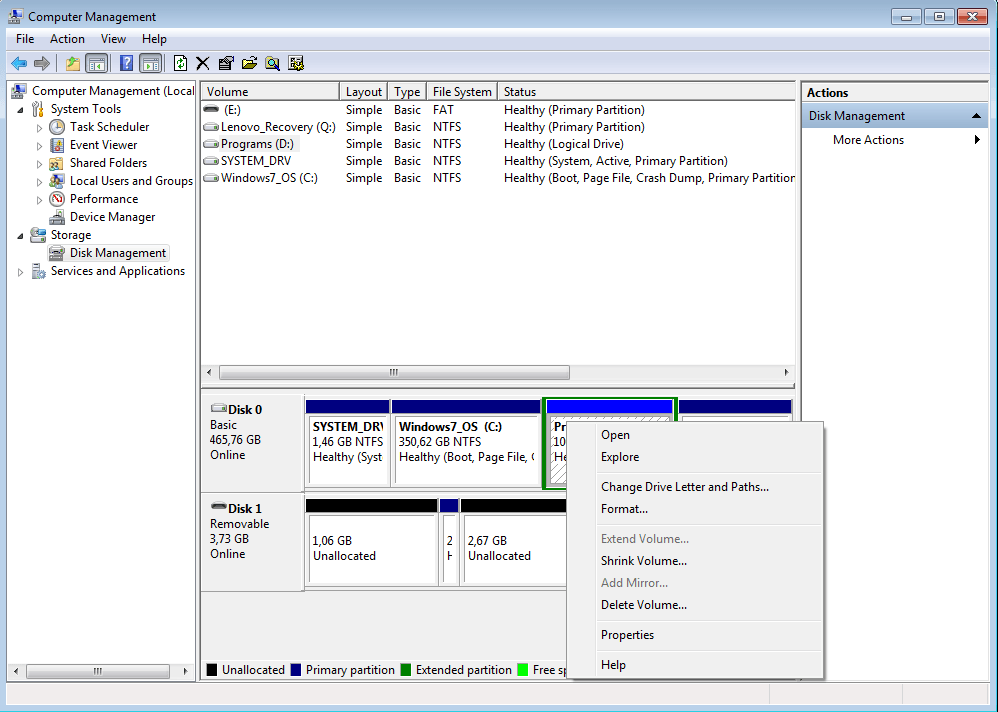
Fortunately there are command line tool called diskpart which can be used to manage partitions of any attached disks. To start it just click on Windows Start Menu and type diskpart.
Here are the steps that you need to run in order to free unused free space from USB drive. First step is to list installed drives. So type the following command:
DISKPART> list diskAnd then you will see something like that.
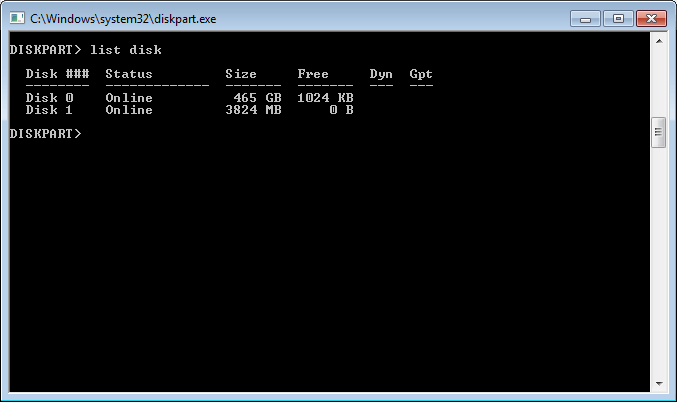
What you see is installed physical disks to your computer. It doesn’t matter whatever it is hard drive or USB. So look into your output and decide which one is your USB drive. Then you need to select it. In my case it is number 1. So you have to execute the following command.
DISKPART> select disk 1When the USB mountable stick is selected then you need to clean it and to create brand new primary partition. To do that just execute next two commands
DISKPART> clean
DISKPART> create partition primary
Then you need to exit from the diskpart tool by typing exit command.
Here is the full list of commands pun in text and picture.
DISKPART> list disk
DISKPART> select disk 1
DISKPART> clean
DISKPART> create partition primary
DISKPART> exit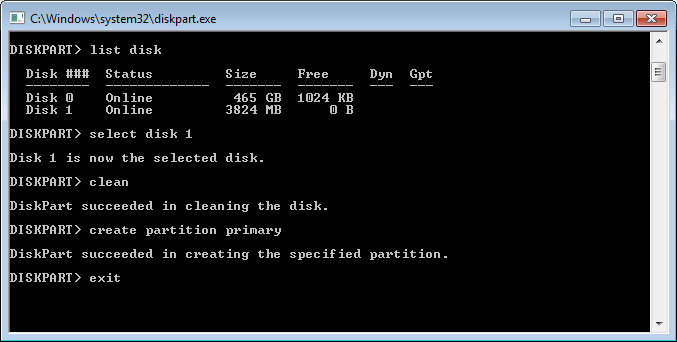
After that you need to format the USB drive. But note that it is not in the list with drives. You have to go to Computer section from File Explorer and then you will see it in the right panel.
And on the final step you can see that USB stick has all of its space free and just after format it will be available for use.